When you go to "Your Payments" in the left-side menu and choose "Payment Orders", you'll land right in your signatute folder. Here, you'll find all your (still) open orders. Want to find specific orders? Filters are your friend.

Last Article Update 23.04.2026
When you go to "Your Payments" in the left-side menu and choose "Payment Orders", you'll land right in your signatute folder. Here, you'll find all your (still) open orders. Want to find specific orders? Filters are your friend.
In the signature folder, orders are sorted by due date in descending order, i.e. the oldest come first. If the due date of two orders is the same, George ranks them in ascending order by creation date – the newest first.
To let you order the signature folder according to your needs, you can use a combination of filters. To see them, click "Show filters".
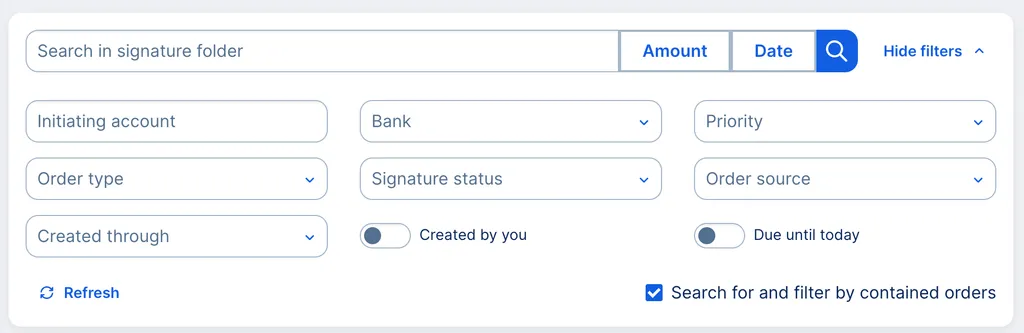
Even without further filters, you can narrow your results by using Amount and Date.
Initiating account: Simply select the accounts you want.
Order type: This helps if you only want to see specific orders (e.g. salary payments). In the list, you'll find options such as:
Created through: You can filter orders by source/creation method. That includes:
Bank: If you have multiple institutes with George Business (e.g. Erste Bank and Tiroler Sparkasse), you can select them here.
Signature status: A quick description of what these statuses mean:
Priority: You can highlight orders by "Urgent" or "Standard".
Order source: You can filter by George Business licenses (companies).
Of course, you can also hide the filters from your overview or cancel your selection at any time. Then the orders are displayed again as usual.
Author: Tamara Berger-Feichter