The George Business search in the top navigation finds transactions across all your accounts, cards and products. But you can also search the account history of each individual account. Here's how.
Last Article Update 31.07.2026
The George Business search in the top navigation finds transactions across all your accounts, cards and products. But you can also search the account history of each individual account. Here's how.
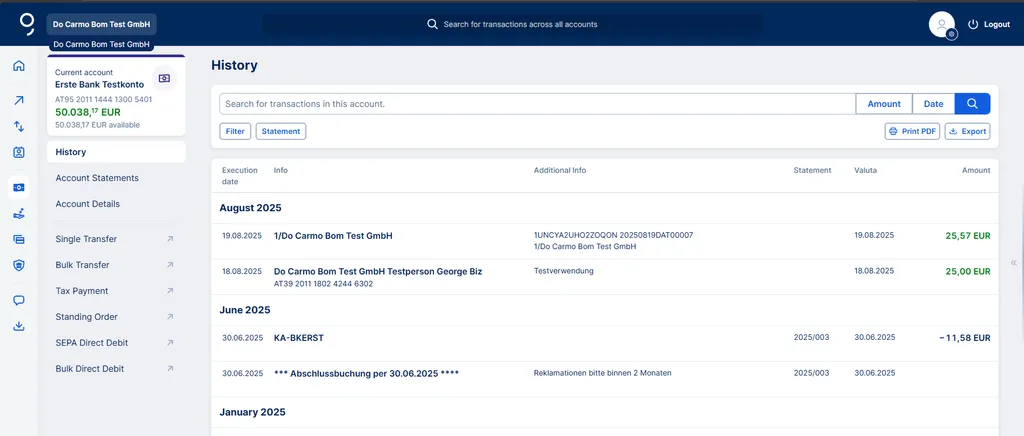
To get started, choose one of your accounts and go to History. You can now search for transactions within the last 7 years using the search bar and other filters.
Transaction search within an account is very similar to transaction search across accounts and products. Both have the following tools:
For searches wihin an account, you'll see 2 further options above the search results:
Start your search with whatever you know about the transactions you're searching for. Simply enter a name (or part of it), recipient, invoice number, text, reference number, IBAN or anything else.
Here are some additional tips & tricks for your search.
If you want to search a specific period, use the date filter. To do so, select the desired period by clicking on a start and end date. George will then show you all the transactions within your desired time period.
Want to search for a certain amount, but don't remember exactly how much? That's where the amount filter comes in handy. Simply enter a minimum and a maximum amount and George will show you all transactions in the selected range.
This can come in handy, for example, if you only want to see who transferred you money. Click on the "Filter" button and choose incoming or outgoing transactions.
You can also narrow your results to transactions that appear in a specific range of account statements. First, click "Statement". Then, enter which statement number George should start with ("From") and where he should stop ("To"). Use the same format as you see for the statements (e.g. from 2026/001 to 2026/009).
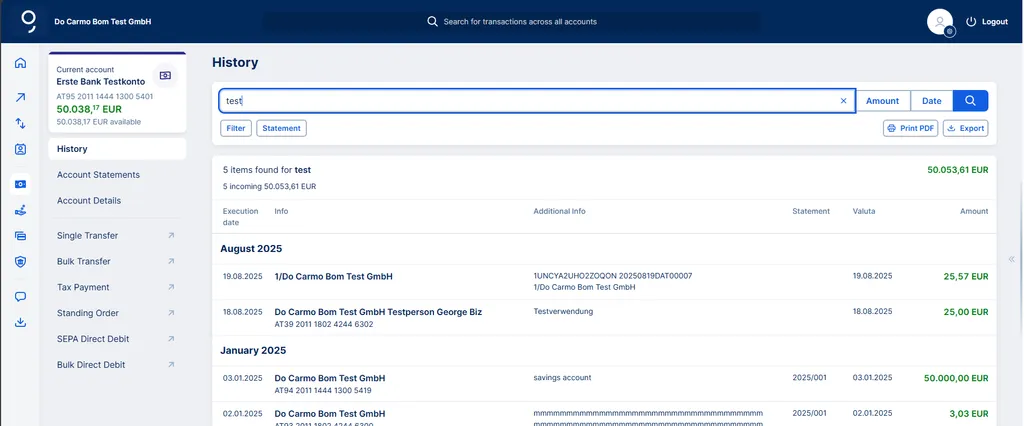
Details you see when you search within an account
Above the found transactions, George shows some general information:
George displays transactions that fit your search parameters in chronological order, from new to old. If you want to further narrow his findings, you can add other filters:
Apart from booking date, amount and essential info (in most cases recipient or sender), George Business displays some additional transaction info, as well as the valuation date. To access transaction details, just click on a search result.
Last but not least, you can print & export your search results from here by clicking on the respective symbols on top of the findings list.