Your User Profile

Last Article Update 28.10.2025

Your User Profile is in the header, next to the Logout button. Here, you can personalise your experience, manage your details and choose how you access George Business. If you're an admin, you'll be coming here often - this is where to when you want to manage permissions and view company data. 

 

User Profile in George Business header User Profile in George Business header

User Profile looks different for admins and other users - though some options are available to everyone. 

For all users

All users will see "User Profile & Settings". Here, you'll see the following options:


  • Profile: Change language (German or English) and appearance. Set a shortcut for Feature Assisstant, which lets you search anywhere on the site.
  • Contact details: View and edit your phone, email and address.
  • Access: Change your EB PIN (electronic banking PIN) for OTP logins. If you have the right permissions, you can change the EB PIN for users and assign TAN cards (for SMS TAN and CardTAN logins).

For George Business administrators

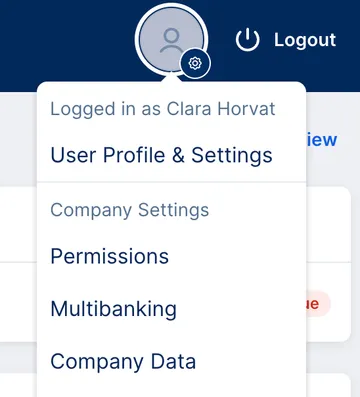
User profile for admin - profile settings, permissions, multibanking, company data User profile for admin - profile settings, permissions, multibanking, company data


If you're a company admin, you'll see more options in the menu. This is your go-to for managing users and roles, access to products and connections with other banks. 

  • Permissions: View and manage what users can do. Create, edit and assign roles. You can also specify rights for each product
  • Multibanking: Have accounts at other banks? No problem. Here, you can add and manage EBICS connections. 
  • Company Data: View details of your George Business license. 

Author: Tamara Berger-Feichter