What to Know About Verification of Payee as a Recipient
Last Article Update 18.11.2025
Each time someone pays you by SEPA transfer, a Verification of Payee takes place. That is, a check to see if the IBAN and name the sender enters matches what's on record. Here's how to make payments go smoothly - and make things easy for you and your customers.
Verification of Payee can help flag if an account does not seem to belong to who it should. For example, if an IBAN is tied to "Franz Gruber" instead of the intended "Erste Bank".
However, even a legitimate payment can end up with a no-match result. There are many reasons for this, including:
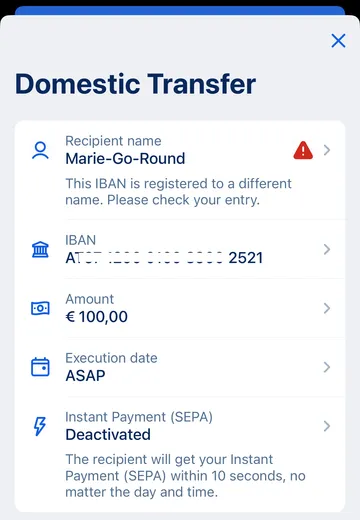
Using a trade name (like "Marie-Go-Round") instead of the name tied to the account ("Marie Weber GmbH").
Typos, abbreviations (e.g. "MW GmbH") or alternative formats
Senders not knowing the difference between brand name and account holder
How to ensure smooth payments
These tips can help you avoid delays, and reassure customers and business partners.
Make sure to use the exact account holder name listed with George Business. You will find this under "Account Details".
Check everywhere you share payment details (e.g. invoices, bills, QR codes, websites) to see if they're accurate.
Consider adding a note to invoices or payment instructions to remind senders to use the right name.
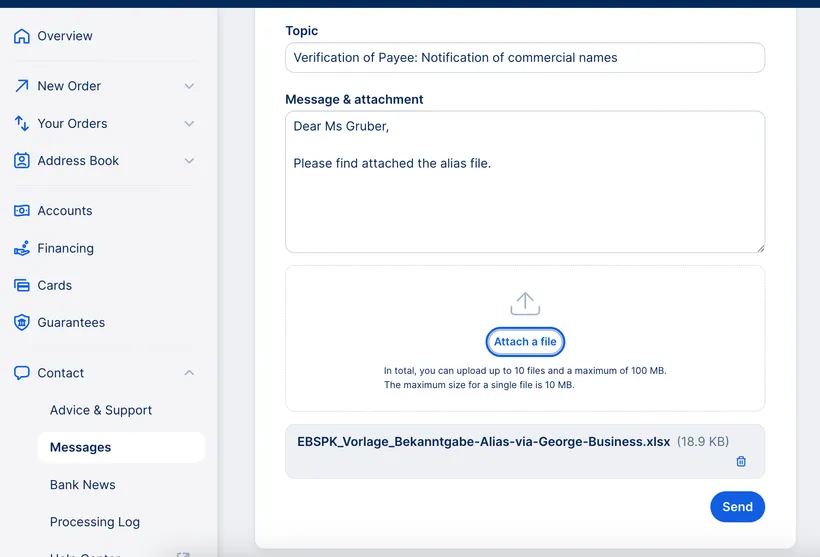
You can also link trade names to your account with aliases - read on to see how.
Add an alias with George Business
You can register your trade name(s) to make sure they also result in a match. That way, customers and business partners can simply use the name they're used to seeing.