Set Up a New EBICS Connection

Last Article Update 09.12.2025

George Business supports multibanking with EBICS (Electronic Banking Internet Communication Standard), a Europe-wide standard for safe, efficient electronic payment flows. With George Business, you can use EBICS to manage your accounts with other banks and process payments in one place. George Business exclusively supports EBICS Version 3.0 and allows for easy integration across multiple Austrian banks. Read on to see how to set up EBICS connections.
 

New EBICS connection New EBICS connection

A step-by-step guide to setting up a new EBICS connection

1. Create a new connection


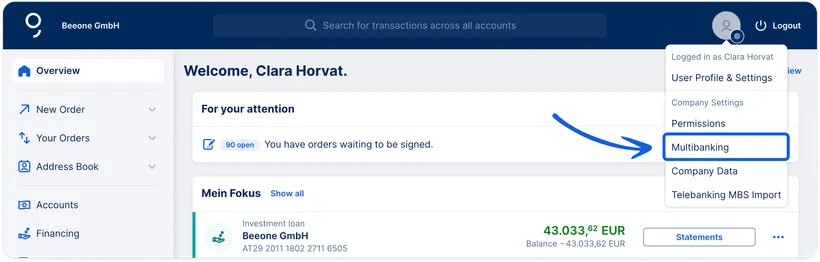
Log on to George Business as your company's George Business administrator. Then go to your enterprise options in the top right in the main navigation.

There you will find "Multibanking". Click this option, then go to "EBICS Connections".


Your enterprise options Your enterprise options

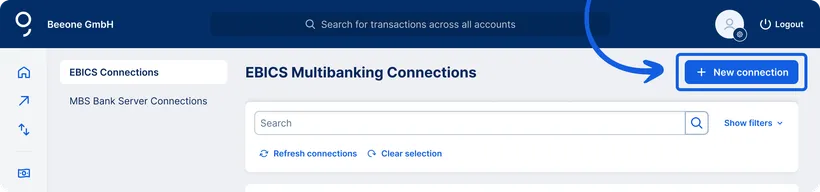
Click on "New connection".


New EBICS connection button New EBICS connection button

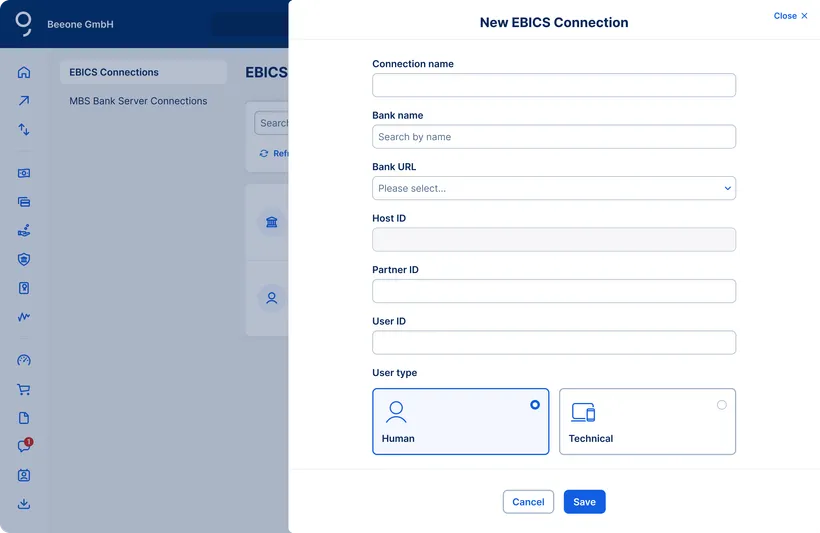
Enter the access details you received from your other bank:

  • Connection name (you are free to choose)
  • Bank name (where the account is)
  • Bank URL
  • Host ID
  • Partner ID
  • User ID
  • User type: There are two options (Human, Technical)


Create new EBICS connection Create new EBICS connection

Human: An actual person can, following a successful EBICS connection setup, create and sign payment orders from the multibanking account. You can choose this specific person at a later point and link them to this EBICS connection. Find out how further below.


Technical: This user type only handles data transfers (e.g. for tax consulting) and does not offer the option to sign payment orders.

If you're not sure, leave the type set to "Human", since a Technical EBICS user usually requires an extra request to your other bank - which must be explicitly pointed out in the document with your EBICS access details.


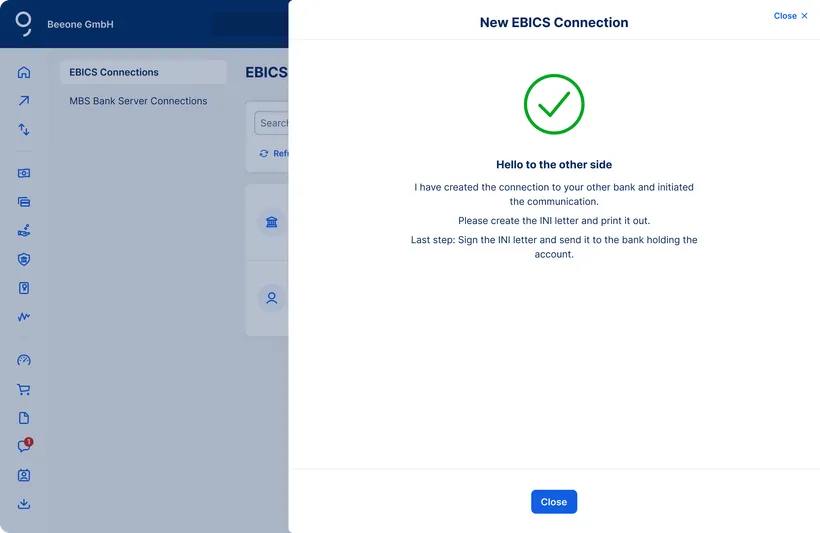
New EBICS connection success New EBICS connection success

2. Print and send the "EBICS Initialisation Letter" 

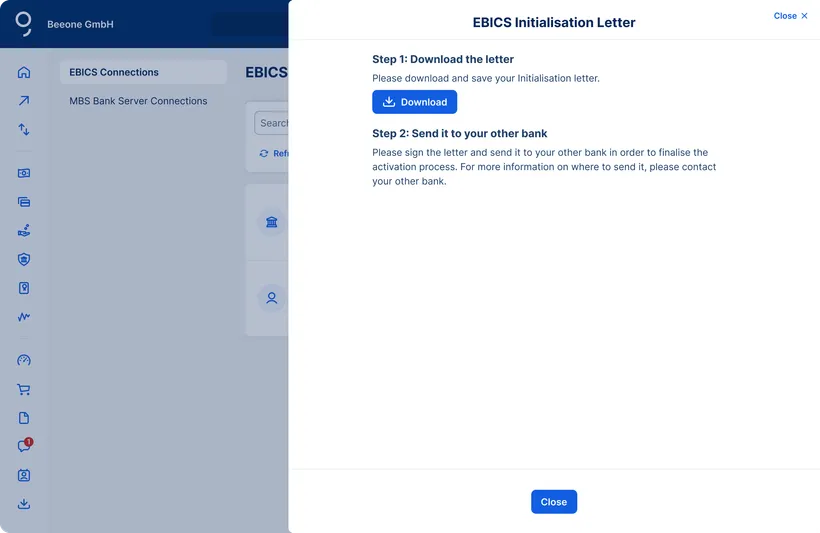
Next, George creates a so-called "EBICS Initialisation Letter" which you can download.

Now it's time for the analog part of the EBICS setup. Print the EBICS Initialisation Letter, sign it and send it to the bank managing the account.


EBICS setup: Initialisation Letter EBICS setup: Initialisation Letter

3. Activation through your other bank

Now it's the other bank's turn. Following the EBICS Initialisation Letter, they have to activate EBICS access. 

During this waiting period, you can view the connection status any time in the EBICS Connections menu at George Business. After successful activation, this status will change to "activated". After this, you can use your accounts and EBICS user with George Business.

4. Linking to a George Business disposer ("Verfüger:in")

To enable signing payment orders for accounts with other banks after successful activation of an EBICS connection, you have to link this EBICS connection (with "Human" as user type) to an Erste Bank und Sparkasse disposer. Disposers are persons with signing authority for George Business. As such, each disposer needs to have a signing method set up. 


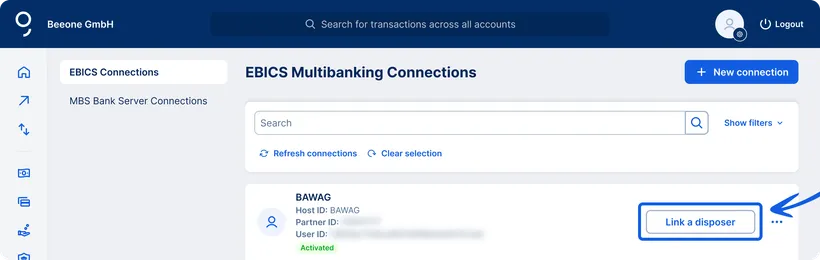
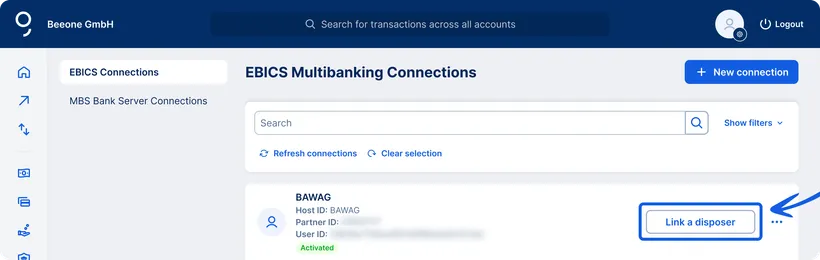
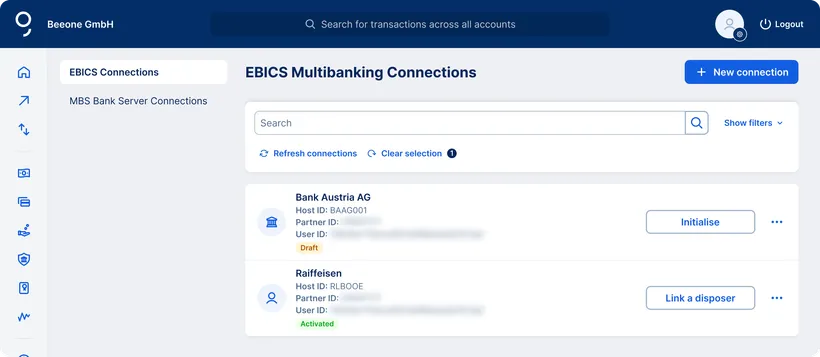
To create this link, go to the desired connection - for example, BAWAG - in your EBICS Connections menu. Then choose "Link".


Link EBICS connection to disposer (button) Link EBICS connection to disposer (button)

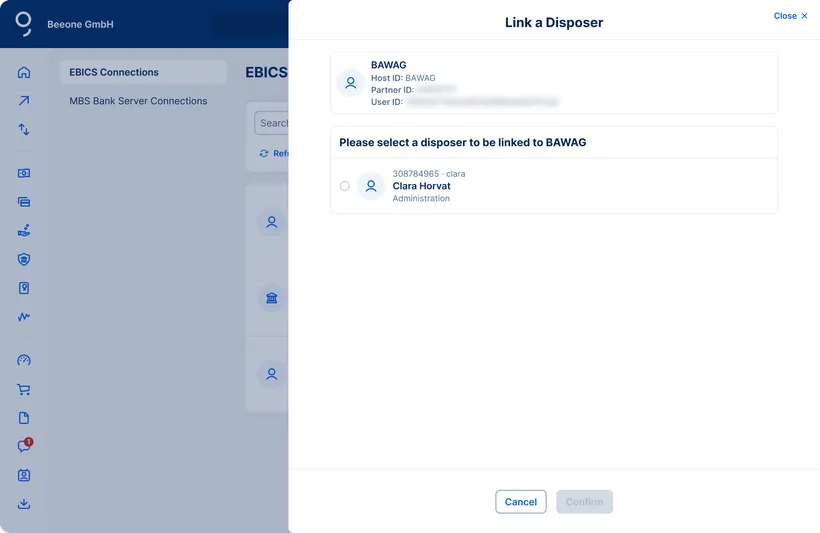
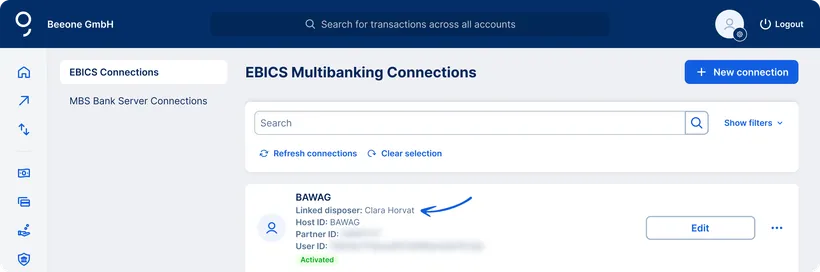
Finally, please choose one of the available disposers in the list and confirm your choice. After linking is complete, George shows you the linked disposer for the EBICS connection. This disposer can, from now on, sign payment orders for the corresponding account at the other bank.


EBICS Connection: Disposer linked EBICS Connection: Disposer linked

Congratulations! You have successfully set up your new EBICS connection.

Switching existing multibanking accounts from MBS to EBICS

You can move an existing multibanking connection using the MBS protocol to the new Europe-wide EBICS protocol. You can do this quick and directly with George, without having to go through the steps above - including printing and sending an EBICS Initialisation Letter.  

The only requirement is that the other bank managing the account supports this digital transfer. The following Austrian banks support easy and comprehensive digital switching from MBS to EBICS:


Bank

BIC(s)

Raiffeisenlandesbank Oberösterreich AG

RZOOAT2L, SLHYAT2S

Raiffeisenlandesbank Niederösterreich-Wien AG

RLNWATWW

Raiffeisenlandesbank Kärnten

RZKTAT2K

Raiffeisen-Landesbank Steiermark AG

EXXXATX4, RZSTAT2G, HYSTAT2G

Raiffeisenverband Salzburg eGen

RVSAAT2S

Raiffeisen-Landesbank Tirol AG

RZTIAT22

Raiffeisenlandesbank Burgenland und Revisionsverband eGen

RLBBAT2E

Raiffeisen Landesbank Vorarlberg mit Revisionsverband eGen    

RVVGAT2B

LLB Österreich (Liechtensteinische Landesbank (Österreich) AG)

LLBOATWW


To move from MBS to EBICS as the George Business administrator of your company, please follow these instructions.

1. Switching MBS disposer

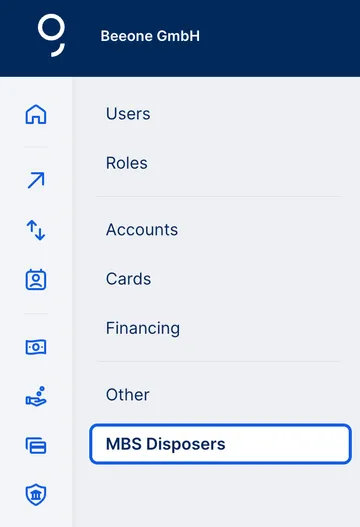
From your enterprise options, go to "Permissions" and choose "MBS Disposers"


Switch from MBS to EBICS: MBS disposer Switch from MBS to EBICS: MBS disposer

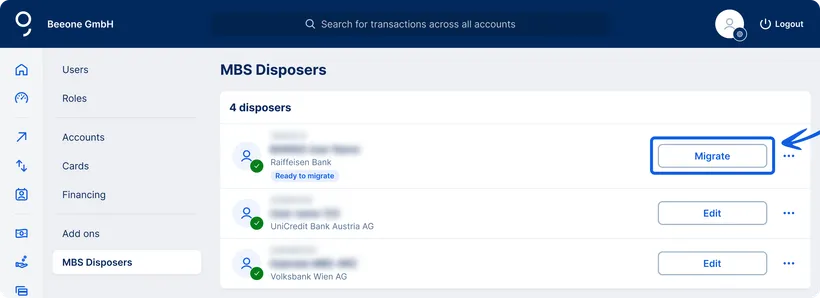
You'll know if an MBS disposer is ready to migrate from MBS to EBICS if you see:

  • A checkmark with green background (PIN exists and a signing method is activated)
  • Status showing "Ready to migrate"

If both conditions are fulfilled, click on "Migrate".


Switch from MBS to EBICS: MBS disposer ready to migrate Switch from MBS to EBICS: MBS disposer ready to migrate

The switch from MBS to EBICS for George Business requires the disposer holder to sign (one-time only) using the activated method (smsTAN or cardTAN) for the other bank. Please remind the relevant person to do this. 

After a successful swtich, the status in your MBS Disposers changes to "Migrated".


Switch from MBS to EBICS: MBS disposer migrated Switch from MBS to EBICS: MBS disposer migrated

2. Linking to a George Business disposer ("Verfüger:in")

To enable signing payment orders for accounts with other banks after successful activation of an EBICS connection, you have to link this EBICS connection (with "Human" as user type) to an Erste Bank und Sparkasse disposer. Disposers are persons with signing authority for George Business. As such, each disposer needs to have a signing method set up. 

To create the link, go to the desired connection - for example, BAWAG - in your EBICS Connections menu. Then choose "Link".


EBICS setup: Link disposer EBICS setup: Link disposer

Finally, please choose one of the available disposers in the list and confirm your choice. After linking is complete, George shows you the linked disposer for the EBICS connection. This disposer can, from now on, sign payment orders for the corresponding account at the other bank.


EBICS setup: disposer linked EBICS setup: disposer linked

3. Important: Moving from MBS to EBICS for accounts at other banks

The next step to completely move to EBICS is switching the multibanking account from MBS to EBICS.

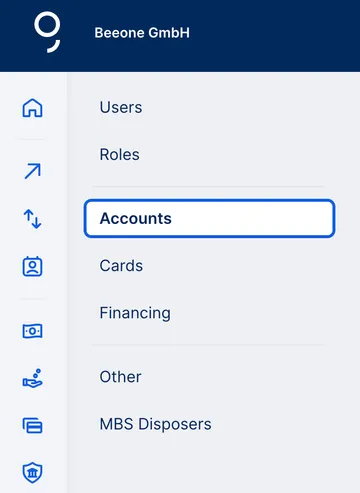
As your company's George Business administrator, please go to "Permissions" among your enterprise options, then choose Accounts.


Switch from MBS to EBICS: Product settings Switch from MBS to EBICS: Product settings

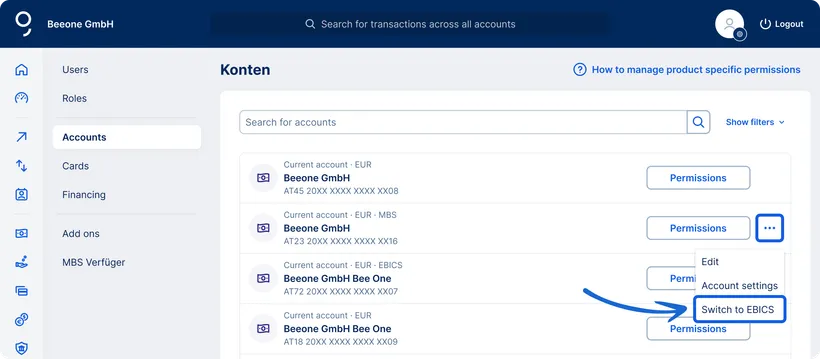
You'll know your multibanking account is still set to MBS if you see "MBS" next to it. If this is the case, click the three dots (...) and choose "Switch to EBICS"


Switch from MBS to EBICS: Move Switch from MBS to EBICS: Move

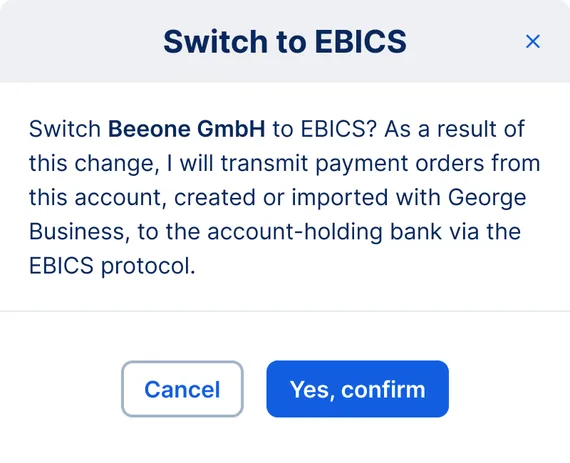
Next, confirm the move to EBICS for your account with the other bank.


Switch from MBS to EBICS: Confirmation Switch from MBS to EBICS: Confirmation

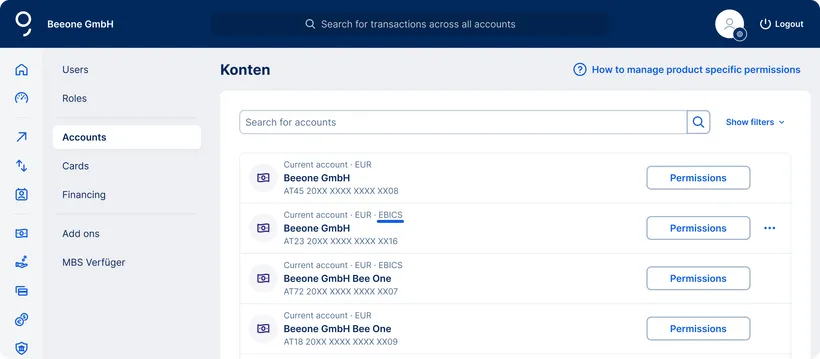
Now you should see "EBICS" next to the currency for your account with the other bank.


Switch from MBS to EBICS: MBS disposer moved Switch from MBS to EBICS: MBS disposer moved

Congratulations! You have now successfully set up a new EBICS connection.

Autors: Tamara Berger-Feichter & Dag Erik Zimen