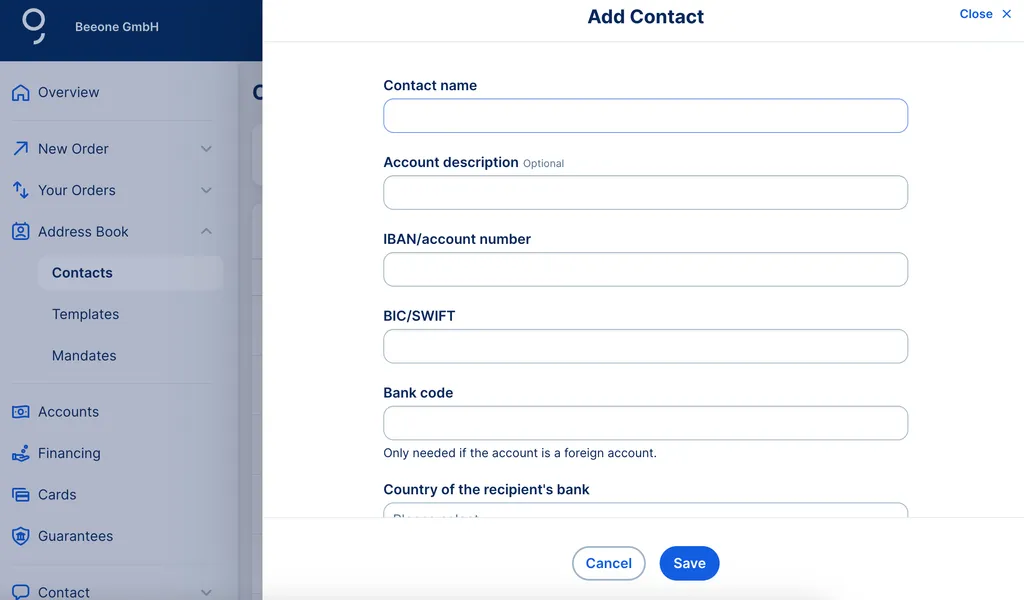
It’s always good to have your contacts near at hand. That goes for digital banking too. Which is why George Business makes things convenient with Address Book, where you'll find all your contacts' bank details - and can create new contacts too.

Last Article Update 19.05.2026
It’s always good to have your contacts near at hand. That goes for digital banking too. Which is why George Business makes things convenient with Address Book, where you'll find all your contacts' bank details - and can create new contacts too.
You'll find the Address Book in the left-side menu. Here, you can save and manage your contacts and their transaction-relevant details. You can also access your transfer templates, which let you set up orders fast and simple.
When you go to "Contacts" under Address Book, you'll see a list of contacts you created. When you use a contact while creating an order, George uses the relevant details (e.g. IBAN, address) based on the information here.