Manage Your Existing Business Contacts

Last Article Update 11.06.2025

Dashboard Dashboard

Altering the contact name, changing the phone number, or adding a second address - no matter what, with George, you can easily edit your business contacts. 

How to manage your business contacts

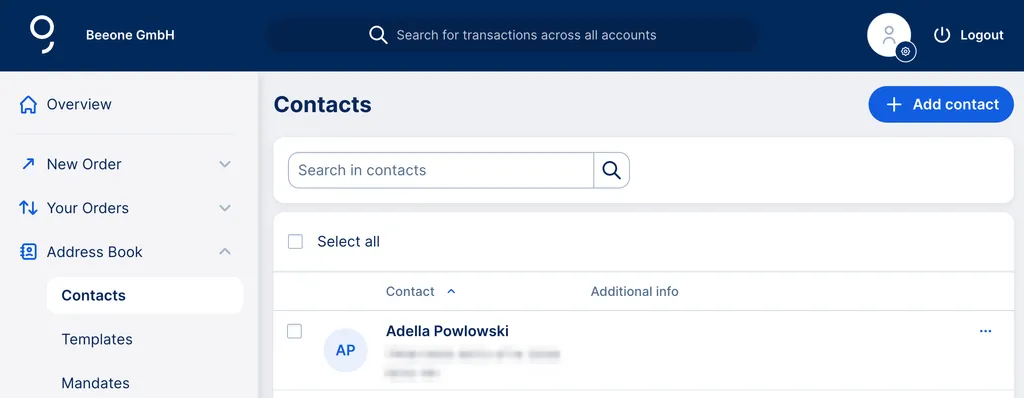
If you take a look at your dashboard, you will see the address book in the menu on the left side. 

  1. By clicking on "Business Contacts", you will be redirected to all your existing business contacts.  

  2. To see - and then edit - the contact details, click on the contact you want George to display.

  3. You have two options now: you can either delete the business contact or edit it. 

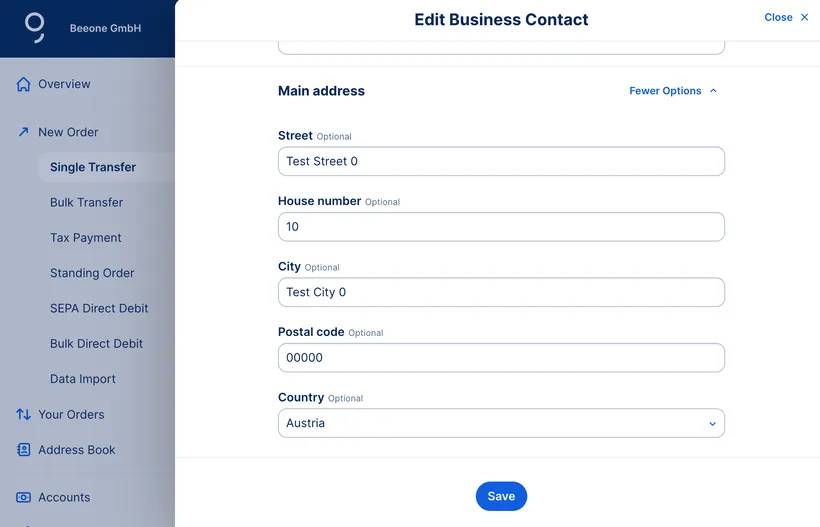
  4. By clicking on "Edit business contact", you will be redirected to the contact details you can edit. Now you can change any information or add some. You can also add a second - or more - addresses to a business contact.

Business contacts: Edit during order or template creation

Edit Business Contact Edit Business Contact


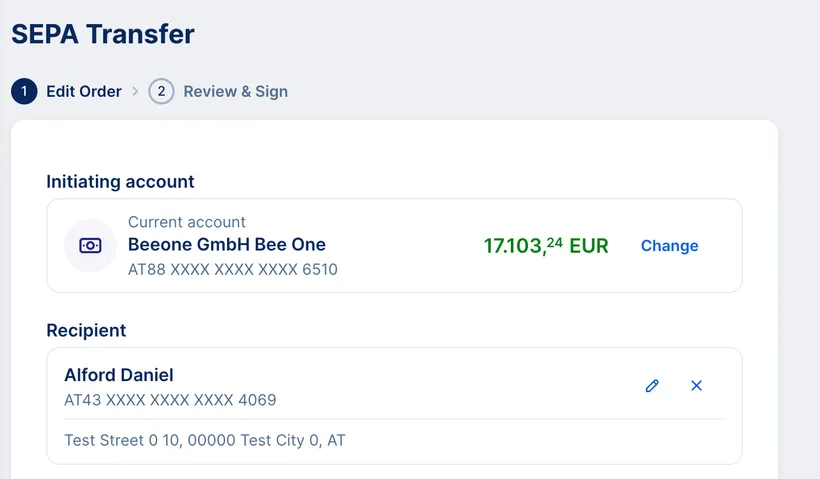
As a George Business user, you also have the option of editing your existing business contacts including IBAN and account number while creating a payment order or template.

All you need to do is click on the pencil icon to edit the business contacts for single and bulk transfers, single and bulk direct debits, standing orders and templates. This way you can do two things at once in one step.
 

EditContact EditContact