To switch to George ID, please select the appropriate guide based on how you have been using George Business so far.
Step 1
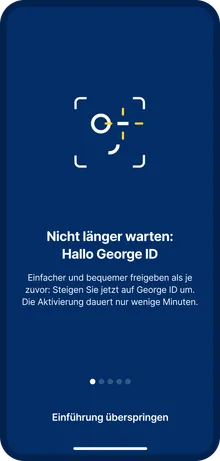
Once George ID is available, you will receive the message “Don’t wait any longer: Hello George ID” in the George Business app. At the end of the introduction, choose between “Yes, approve the switch” and “Not now.”
Click the “Yes, approve the switch” button to start the transition.

Step 2
Read carefully in s Identity whether you are being asked “Would you like to activate George ID as your new approval method?” and click “Approve.”
Important! If the question differs, make a note of the text, click “Cancel,” and contact our George Business Helpdesk, available 24/7, at +43 (0) 50100 – 50320 for clarification with our support team.

Step 3
After approving in s Identity, the message “Thank you …” will appear. Click “OK” to return to George.
If you are not redirected automatically, please switch back to the George Business app manually.
Step 4
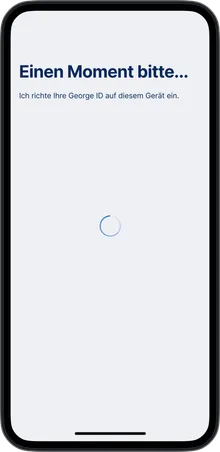
The George Business app will briefly display the message “One moment please… I’m setting up your George ID on this device.”
Step 5
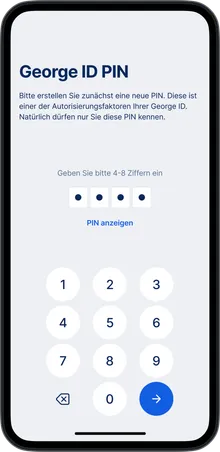
Please now set up your George ID PIN. This PIN will be required for approvals in the future if you do not use biometrics or if biometric recognition fails. During the initial setup, you must enter the PIN twice.
Important: Protect your George ID PIN just like a card PIN.
Do not use your debit/credit card code or easily guessable sequences such as social security numbers or “1234”.
Do not write down your PIN, do not share it with anyone, and never store it on your device.

Step 6
You can now additionally enable biometrics for approving orders if you wish. However, the George ID PIN will still be requested if biometric recognition does not work.
Step 7
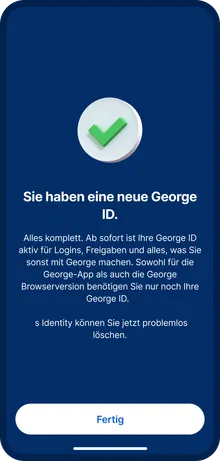
Confirm the message “You have a new George ID” by clicking “Done.” You can now remove s Identity from your device, as the device linkage was automatically lifted when activating George ID.
Have you been using the George Business app on multiple devices?
If you use the George Business app on several devices, you will need to set them up again, as they were disconnected during the transition. You can find instructions for this here.
Step 1
Once George ID is available, you will receive the message “Don’t wait any longer: Hello George ID” in the George Business app. At the end of the introduction, choose between “Yes, approve the switch” and “Not now.”
Click the “Yes, approve the switch” button to start the transition.
Step 2
Read carefully in s Identity whether you are being asked “Would you like to activate George ID as your new approval method?” and click “Approve.”
Important! If the question differs, make a note of the text, click “Cancel,” and contact our George Business Helpdesk, available 24/7, at +43 (0) 50100 – 50320 for clarification with our support team.
Step 3
After approving in s Identity, the message “Thank you …” will appear. Click “OK” to return to George.
If you are not redirected automatically, please switch back to the George Business app manually.
Step 4
The George Business app will briefly display the message “One moment please… I’m setting up your George ID on this device.”
Step 5
Please now set up your George ID PIN. This PIN will be required for approvals in the future if you do not use biometrics or if biometric recognition fails. During the initial setup, you must enter the PIN twice.
Important: Protect your George ID PIN just like a card PIN.
Do not use your debit/credit card code or easily guessable sequences such as social security numbers or “1234”.
Do not write down your PIN, do not share it with anyone, and never store it on your device.
Step 6
You can now additionally enable biometrics for approving orders if you wish. However, the George ID PIN will still be requested if biometric recognition does not work.
Step 7
Confirm the message “You have a new George ID” by clicking “Done.” You can now remove s Identity from your device, as the device linkage was automatically lifted when activating George ID.
Have you been using the George Business app on multiple devices?
If you use the George Business app on several devices, you will need to set them up again, as they were disconnected during the transition. You can find instructions for this here.
Step 1
As soon as George ID is available for you, you will be greeted in George Business on your computer with the message “s Identity becomes George ID.”
Important: To successfully complete the switch, you must first set up the George Business app for use with s Identity and then perform the transition to George ID through the George Business app.
No active steps—such as test transfers—are required in George on your computer during the migration. If you are asked to perform such actions, stop the process immediately and contact our George Business Banking Helpdesk, available 24/7, at +43 (0) 50100 – 50320 for further clarification.
Step 2
Download the George Business app from the official app store appropriate for your device, as instructed. For example, you can scan the QR code with your phone’s camera to be taken directly to the download page with the store links. Do not install George Business from any other source (such as internet search results), as this may expose you to the risk of malware or phishing.
Step 3
George Business on your computer will show you a brief summary of the next steps, all of which must be carried out exclusively on your mobile phone. Simply leave this page open and unchanged.
Step 4
Öffnen Sie die soeben installierte George Business-App und klicken Sie auf den Button „George Business Login“.
Step 5
Open the newly installed George Business app and click the “George Business Login” button.
Step 6
You will now be asked to confirm your login to the George Business app using s Identity.
If this does not happen automatically, switch to the s Identity app and confirm the question “Would you like to log in to the George app?”
As soon as you see the message “Your approval is now being processed…”, switch back to the George Business app.
Step 7
Back in the George Business app, you will now be asked whether you want to activate the “Easy Access” feature. This allows you to open the app more quickly by using your device’s biometric authentication (face or fingerprint recognition) instead of logging in from scratch each time. To make the switch to George ID easier for you, we recommend activating Easy Access. Click “Yes, activate Easy Access” and select one of the available options on your device.
Please note that activating Easy Access must also be confirmed in the s Identity app. s Identity will therefore prompt you to confirm the question:
“Would you like to activate ‘Easy Access’ for logging into the George app?”
Step 8
With this setup, the George Business app is now ready for use with s Identity. You will therefore see the message “Thank you for your settings.”
Please note that the actual switch to George ID only begins now, when you click “Done.”
Step 9
The app will now show you the introduction to George ID. At the end of the introduction, you can choose between “Yes, activate George ID now” and “Not now.” Click “Yes, activate George ID now” to begin the switch.
Step 10
You will be taken directly to an approval request. s Identity will therefore open automatically. If it does not, please switch to the s Identity app manually. There you will be asked to confirm the question:
“Would you like to activate George ID as your new approval method?”
Important! If the question differs, write down the exact text, click “Cancel,” and contact our George Business Helpdesk, available 24/7, at +43 (0) 50100 – 50320 for clarification with our support team.
Step 11
After you have confirmed the approval, you will see the message “Your approval is now being processed…” in s Identity.
Click “OK” to return to the George Business app. If you are not redirected back to the George app automatically, please return manually.
The George app will then briefly display the message “One moment please…”.
Step 12
Please now set up your George ID PIN. This PIN will be required for approvals in the future if you do not use biometrics or if biometric recognition fails. During the initial setup, you must enter the PIN twice.
Important: Protect your George ID PIN just like a card PIN.
Do not use your debit/credit card code or easily guessable sequences such as social security numbers or “1234.”
Do not write down your PIN, do not share it with anyone, and never store it on your device.
Step 13
You can now additionally enable biometrics for approving orders if you wish.
However, the George ID PIN will still be requested if biometric recognition does not work.
Step 14
Return to George Business on your computer and click the “Done” button.
Read more: How to set up additional devices for use with the George Business app.
Step 1
As soon as George ID is available for you, you will be greeted in George Business on your computer with the message “s Identity becomes George ID. Please click “Next.”
Important: To successfully complete the switch, you must first download and set up George ID for desktop in the next steps, and then confirm the switch to George ID via the s Identity Desktop app.
No active steps—such as test transfers—are required in George Business on your computer during the migration. If you are asked to perform such actions, stop the process immediately and contact our George Business Helpdesk, available 24/7, at +43 (0) 50100 – 50320 for further clarification.
Step 2
You will be able to decide during the migration process whether you want to use the desktop version or the mobile version.
Whichever option you choose, please do not delete the Identity Desktop app until the migration has been successfully completed.
Click “Next.”
Step 3
Decide now whether you would like to use George ID via the smartphone app in the future or continue using it on your desktop.
- If you choose the smartphone app, continue with step 2 in the guide “I have been using George Business only on my computer and have the s Identity app on my smartphone.”
- If you choose the desktop version, select “George ID on the computer” and click “Next.”
Step 4
We now display a “Download” button, which redirects you (in a new window) to the download page for Windows and macOS.
Download the desktop app from there and then click “Next.”
George ID for Desktop download page: George ID on the computer & cardTAN | Erste Bank
Important! We provide George ID for desktop exclusively via the address above. If the address differs, it is likely a fraudulent site attempting to cause financial harm. In that case, stop the download process immediately and contact our George Business Helpdesk at +43 (0) 50100 – 50320, so we can verify the page.
Step 5
In George Business itself, you do not need to take any further steps for now. Please now install George ID for desktop on your device.
- On macOS, do this by moving the downloaded file with the “.app” extension from Finder (file manager) into the Applications folder. You can then launch George ID from your list of applications. The first time you open it, you must confirm the following prompt by clicking “Open”: “George ID is an app downloaded from the Internet. Are you sure you want to open it?”
- On Windows, the setup process completes all steps automatically and places a George ID icon on your desktop and in the Start Menu.
After installation, open the app. You will be greeted with “Your new George ID is here.” Click “Yes, activate George ID.”
Step 6
Now enter your disposer/user number or your personally chosen username and click “Next.”
Step 7
You will now be asked to confirm the activation of George ID. Please switch to the s Identity Desktop app and confirm the prompt “Would you like to log in to George?”
Important! If you are asked to confirm anything else, stop immediately without clicking any button.
Do not hesitate to contact our George Business Helpdesk at +43 (0) 50100 – 50320 so we can verify the request.
Step 8
Set up your George ID PIN. This PIN will be required for approvals in the future. It must be newly created and is not automatically the same as your previous s Identity Desktop PIN. During the initial setup, you must enter the PIN twice. The PIN can be between 4 and 8 digits long.
Important: Protect your George ID PIN just like a card PIN. Do not use your debit/credit card code or easily guessable sequences such as social security numbers or “1234.” Do not write down your PIN, do not share it with anyone, and never store it on your device.
Step 9
After setting up your George ID PIN, the activation of George ID Desktop is complete. Click “Next” or “Finish.”
That’s it! The setup of George ID for desktop, including the switch to George ID, is now complete. You may delete the s Identity Desktop app from your computer (unless you are still using other disposers with s Identity). Your next approval will already be processed directly via George ID for desktop.
Return to George Business on your computer and click the “Finish” button.
Note 1:
If you want to switch additional disposers/users to George ID for desktop, click “Finish,” open George ID for desktop again, go to Settings, and restart the process from step 6 by selecting “Add new disposer/user.”
Note 2:
If you want to install and set up George ID for desktop on another device in the future, you will need an activation code.
Users can obtain this from their George Business administrator.
Disposers, just like with the s Identity Desktop app, can obtain it exclusively at our branches (via a self-service terminal or with in-person support).
FAQ
After switching to George ID, you can generate an activation code yourself in the George Business app for an additional device. As was already the case with s Identity, you can obtain activation codes from the George Business Helpdesk, from your advisor, or—if you are an authorized user with a debit card—also from self‑service terminals of Erste Bank and Sparkassen that are marked as “George-enabled”.
If you are a George Business user, you can request a George ID activation code from your company’s administrators.
All information about this can be found here.
No, this distinction no longer exists. Activation codes obtained from customer support, the service center, or from a self-service terminal no longer differ in terms of pairing. Likewise, George ID activation codes issued internally by George Business administrators do not distinguish between pairing the George Business app and George ID on a computer.
However, activation codes that users generate themselves from an already paired mobile device (under Profile – silhouette icon in the top right corner / Login & Approval / Add new device) are only suitable for pairing an additional mobile device (smartphone or tablet) with a camera function. Read all details about this here.
We will prompt you to switch exclusively within George Business. We will never ask you for your authorized user number/user number, telephone number, passwords, or a “verification of your identity” in connection with the migration.
Important: Never disclose personal data if you are asked to do so by email, letter, or phone. Do not confirm personal data or authorize test transfers. End suspicious calls immediately and contact us right away—e.g. via the George Business Helpdesk at
+43 (0) 50100 – 50320 (Monday–Friday: 7:00–19:00).
Tip: In our Security Center, we warn you about all currently known fraud methods.
It works very similarly to what you are already used to, except that no additional app is required if you already use the George Business app. Approval takes place directly within the George Business app.
If you use George Business on a computer, start the login as usual by entering your authorized user number/user number, then open the George Business app, compare the verification number, and approve the login.
If you use George ID on a computer for approvals, first start the login in George Business on the computer by entering your authorized user number/user number. Then open George ID on your computer (Windows or macOS), select “Load transactions” in the bottom right corner, compare the verification number, and approve the login.
cardTAN will remain unchanged for you. If you use George Business exclusively on a computer, there will be no changes to the usual process for logging in or approving orders.
A small change applies if you reinstall the George Business app in the future: instead of a PIN, pattern, or biometrics for Easy Access, you will only have the options George ID PIN and optionally biometrics available.
You define the George ID PIN yourself during the initial login. It cannot be changed to match the EB PIN for your card reader. The PIN can consist of 4 to 8 digits.
From then on, every time you open the George Business app, you must either enter your chosen George ID PIN or confirm via biometrics. However, for approving orders, a valid cardTAN code—generated from the combination of your debit card/TAN card, EB PIN, and order data—is still required.
If you already set up the George Business app in the past using a pattern, PIN, or biometrics, nothing will change for you. These older Easy Access methods remain active until you reinstall the George Business app.
We are sorry that you have concerns. From a technical perspective, this would not be necessary. George ID and our technical systems are state of the art and fully comply with all legal requirements.
With George ID, approvals must still be confirmed using an additional security feature—your personal PIN or Face ID / fingerprint (biometrics).
If you have concerns, you can continue to use cardTAN. With this approval method, the approval code is generated using your debit card (or TAN card) and a small device called a TAN generator, ensuring a physical separation between George Business and approval.
Tip: In our Security Center, we warn you about all currently known fraud methods.
The s Identity desktop app for computers is being replaced by George ID on the computer. This solution is also available for Windows and macOS devices.
If you currently use the s Identity desktop app, we will inform you directly in George Business how to switch to George ID on your computer. The download for George ID on the computer is provided via this link.
Without the s Identity app or the s Identity desktop app, you cannot independently approve the migration to George ID within the processes shown in George Business. If you uninstalled the s Identity app before switching to George ID, you need an s Identity activation code to reinstall and set it up again. All information about this can be found here.
Alternatively, you can switch directly to George ID:
Users can do this directly via their George Business administrator, who can provide them with a George ID activation code.
Authorized signers are best switched via customer support:
- Visit us at a branch during opening hours.
- Our advisors will switch your authorized signer to George ID and provide you with a George ID initial activation code.
- Delete the George Business app and reinstall it.
- Set up the George Business app from scratch.
- Due to the branch-based switch, the setup will be completed directly with George ID. You will no longer need the s Identity initial activation code or the s Identity app.
Note: For the migration to George ID, our advisors 반드시 require a valid photo ID for identity verification.
Important: Migration to George ID by advisors is only possible at branches of your own institution. For example, as a customer of Steiermärkische Sparkasse, only at Steiermärkische Sparkasse branches—not at Erste Bank or Sparkasse Oberösterreich branches.
Both the mobile George Business app and George ID for computer support multiple accounts, allowing you to switch quickly and easily between authorized signers without having to enter an activation code each time (this is only required during initial setup).
On mobile devices, however, this works only if the first authorized signer/user set up in the app has already been migrated to George ID. If you first pair an s Identity account in the mobile George Business app and do not migrate it to George ID, the “Additional authorized signer number” button will not appear in your profile, and you will not be able to pair another account in the app.
George ID on the computer does not work for s Identity accounts and requires immediate migration to George ID when you log in, as described in the migration guide. If you have authorized signers who must temporarily remain on s Identity (e.g. for George Business), you must keep the s Identity desktop app installed in parallel and use either George ID on the computer or the s Identity desktop app, depending on the signer.
Yes, this is possible. Open the app and select the silhouette icon in the top right corner to access your profile. Then go to “Login & Approval” and, in the “Biometrics” section, select either “Log in with biometrics” or “Approve with biometrics” (on iOS, this section is called “Face ID”).
If you deactivate biometrics, the George ID PIN will be requested instead. To reactivate biometrics, you must re-enter your George ID PIN. Please note that the PIN always remains active as a fallback method and will be requested if biometric recognition fails.
To switch to full mode in the George Business app, open the app and select the silhouette icon in the top right corner to access your profile. Go to “Login & Approval” and select “App mode”. Choose “Use all George functions” to switch to full mode.
Please note that this requires restarting the app. You can also switch back to “Approval Only” mode at any time if you wish.