How To Use Google Pay With Your Debit Card

Last Article Update 02.02.2026

Have you ever forgotten your wallet at home when you went shopping? How annoying when you have to leave your purchases in the shop. But it's handy when you can pay with your mobile phone in such cases, for example with Google Pay. Google Pay makes your payment process even more convenient. Instead of rummaging around for physical cards or cash, you can simply hold your smartphone up to a contactless payment terminal or shop online with ease.


With Google Pay, you can link your Android smartphone or smartwatch to your debit or credit card to make contactless payments with your mobile phone or smartwatch. That way, you can use it to make contactless payments with NFC (Near Field Communication) in shops. It also works online or in the Play Store. 

Before you start

To start using Google Pay, you need a few (simple) things:


  • A Google account
  • The latest version of the George app
  • An Android device with NFC function and screen lock. It should also have Android version 9.0 or higher. Not sure? Find out by going to Settings → About phone  Android version


Oh, and you need to be at least 14 years old. 

Setting up Google Pay with George - Choose your card

Start by choosing the debit card you want to activate. You have two options:


From George's cards menu:


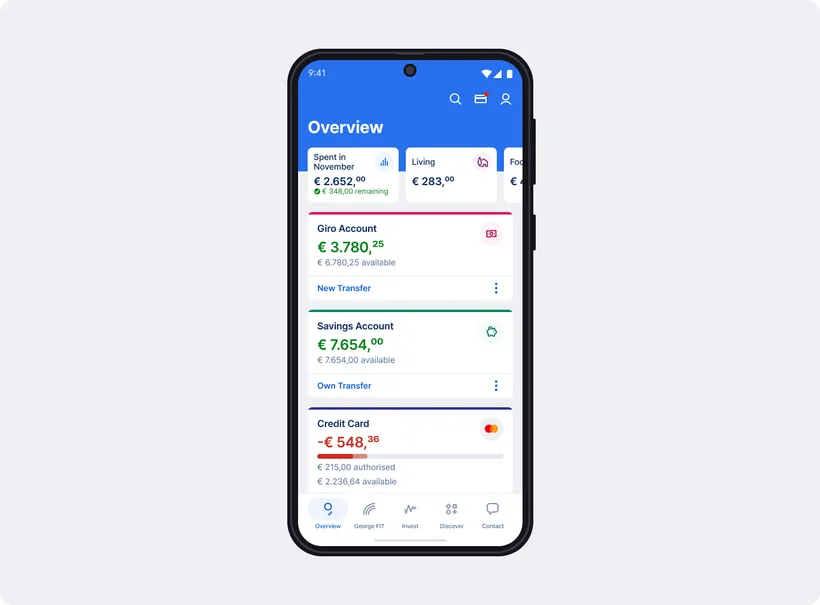
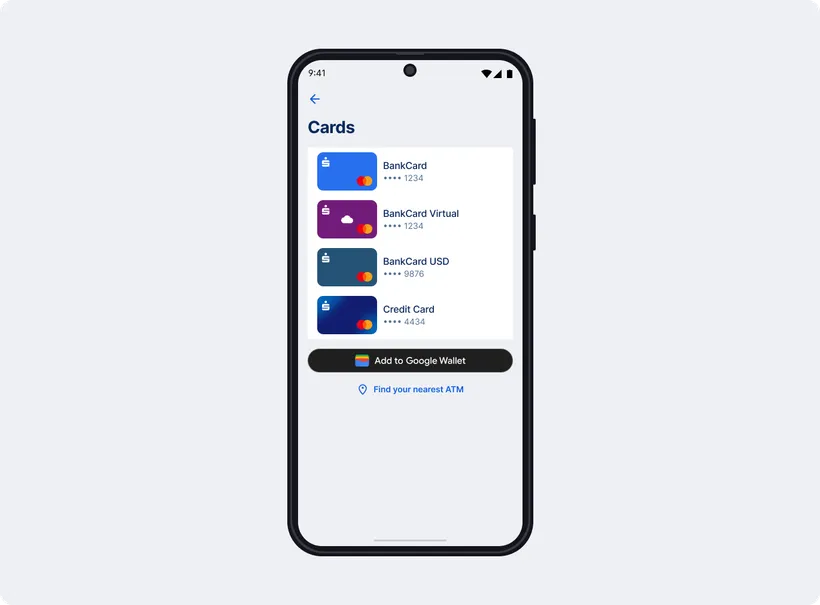
1. Tap the card icon on the top right in your overview.


2. Go to "Add to Google Wallet".

3. The list shows all the cards you can activate. Choose the debit card you want. Want to use Apple Pay with a credit card? Follow the steps here


George cards view George cards view

From your account:


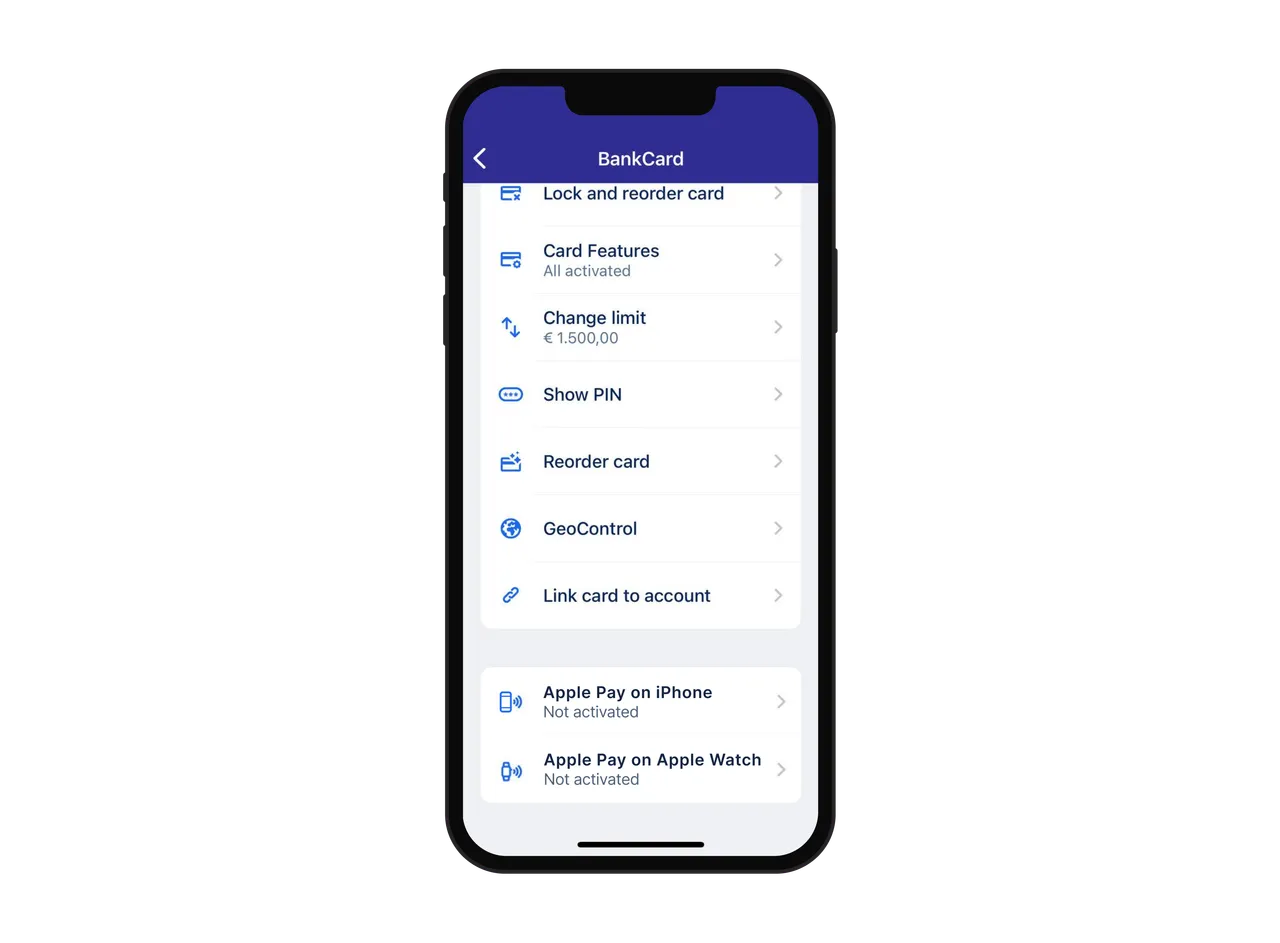
1. Tap on your current account and go to Functions

2. Choose the debit card you want under Cards

3. Tap on "Activate Google Pay".


Apple Pay on iPhone Apple Pay on iPhone

You can also choose directly from your overview. Tap the three dots (...) next to your account and go to "Google Pay".

Activate your card for Google Pay

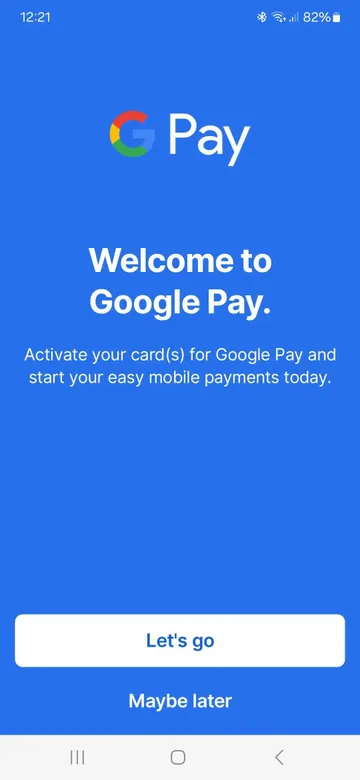
Once you choose a card, you will see a new window pop up.

1. Tap "Let's go".


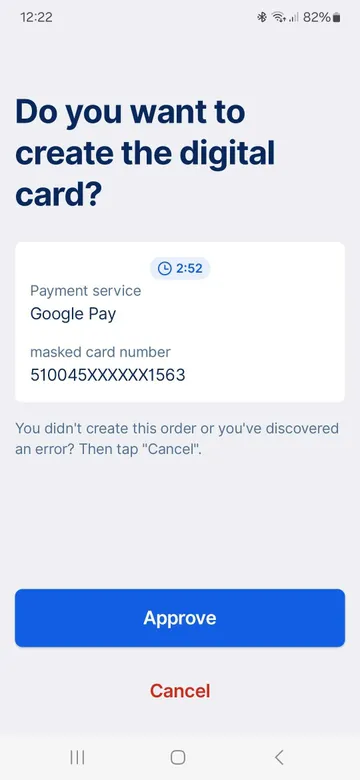
2. You will see a signing screen. Sign this action.


3. George will now take you to Google Wallet. You should also get a text from your bank with a code to verify it's you. Enter this code in Google Wallet.

4. See the blue checkmark? Nice, you're done.

Setting up Google Pay in Google Wallet

You can also set up your debit card for Google Pay in the Wallet app. Here's how:

1. Open the Google Wallet app.

2. Tap the "+" at the bottom.

3. Tap "Payment card" and choose "New credit or debit card".

5. With your camera, place your card within the frame. Google should automatically fill in your card details. You can also do this manually.

6. You will now see the Terms and Conditions of your bank. Please read them carefully and tap "Accept".

7. If asked, verify your payment method. You can ask for a verification code from your bank (email or text), or log in to the George app. 

Changing your default payment method

Google makes the first card you add your default payment method. To change this:


1. Swipe to the card you want and tap it.

2. Tap "Details" at the bottom and choose "Make default for tap to pay".

How to pay in store with Google Pay

1. Unlock your phone.

2. Hold your phone up to the reader. You may need to enter a PIN.

3. See a blue checkmark? That means the payment worked. Success!


If you want to use another card in your Wallet:


1. Open the Google Wallet app.

2. Swipe from the right to go through your cards.

3. Tap the card you want.


How to remove your card from Google Wallet

1. Open the Wallet app on your phone.

2. Swipe until you find your card, then tap it.

3. Tap on the three dots on the top right.

4. Choose "Remove payment method".

Author: Charles Wagner