Ordering and Activating Business Virtualcards

Last Article Update 16.07.2025

Once Virtualcard Manager is active, you can start creating digital cards for your employees. Business Virtualcards are ideal for business expenses - flexible, safe and ready to use right away. After it's created, each employee gets a personal invite e-mail with all they need to know about activating their card. That way, they can quickly access and start using their card - all on their own. This article shows you how to create Business Virtualcards step by step, as well as what your employees need to know for activation.
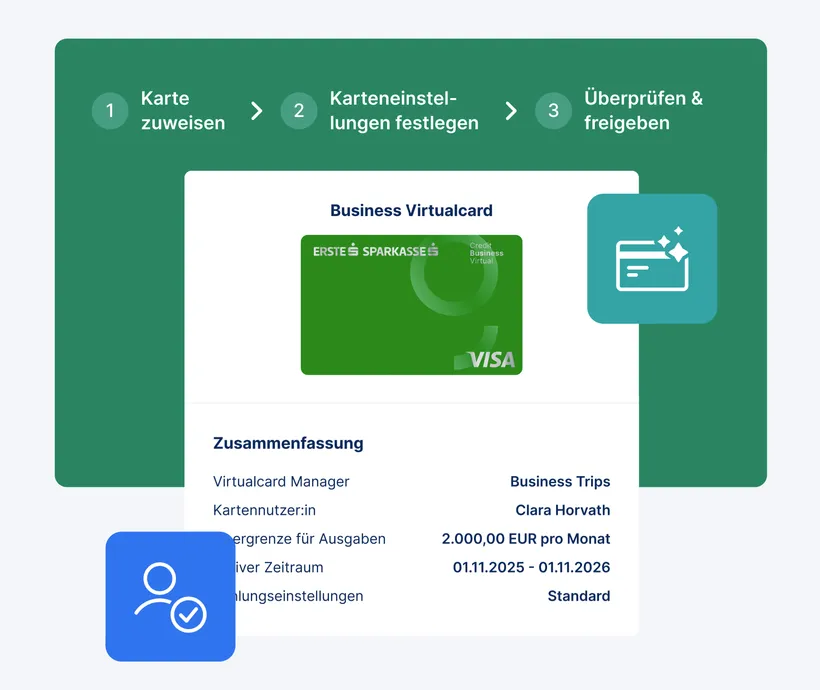
 

Neue Business Virtualcard Neue Business Virtualcard

With an invite e-mail, employees can use the George app to add their Business Virtualcard to Apple or Google Wallet - and start paying with their phone.

A step-by-step guide to a virtual card

  1. From your Overview for George Business, go to "Cards" from the main menu.  Here you'll see - if you have an active Virtualcard Manager - the button "+ Business Virtualcard" in the top right.
  2. Use a Virtualcard Manager that should serve as the main card this new card should belong to. 
  3. Enter employee details (name, address, e-mail, birth date). Please note: If you enter wrong details, you cannot change these later. You will have to close the card and create a new one. 
  4. Choose a language for the invite e-mail.
  5. Define limit type (one-off or monthly) and amount, a validity period, a region and areas of use (shop categories).
  6. Sign the action using your regular method.

Setting a card limit

You decide each card's monthly or one-off limit. Here's a quick description of your two options:

  • One-off limit: For example, € 100 to be used within the time period you choose
  • Monthly limit: For example, € 200 that will be reset every month

You set a limit together with your advisor when ordering a Virtualcard Manager. This is the maximum total amount that can be paid with all virtual cards linked to it.

Your employee is not a George user yet

If your employee is not with George yet, they will need to take the following steps to activate their virtual card:

  1. Get an invite e-mail via Virtualcard Manager
  2. Accept the invite
  3. If the invited person is not a customer yet, their identity needs to be verified. This can take a few minutes and requires an EU identity document. Persons without an ID document or passport from an EU country can, as of now, unfortunately not use this process. In such cases, please contact the bank of the company or the s Service Center.
  4. After verification, the person receives a George user ID - a disposer ("Verfüger")
  5. Finally, the virtual card will show up in the George app and must be added to the Wallet (Apple or Google) in order to be used in shop - there is no physical card.

You can find more tips and tricks about Virtualcard Manager and Business Virtualcards here

Author: Tamara Berger-Feichter