George is smart, and tries to categorise your transactions for you. But he’s not perfect (no one is) and may not know where to put some of them. Good thing he can learn from someone even smarter: You.

Last Article Update 07.10.2025
George is smart, and tries to categorise your transactions for you. But he’s not perfect (no one is) and may not know where to put some of them. Good thing he can learn from someone even smarter: You.
With the Categorisation Wizard, you can set rules to teach George how to sort incoming and outgoing transactions. That way, you get a more accurate overview of your money. And can keep your finances even fitter with George FIT.
From the top navigation:

George shows you a list of uncategorised transactions. For each sender / recipient, you will see:
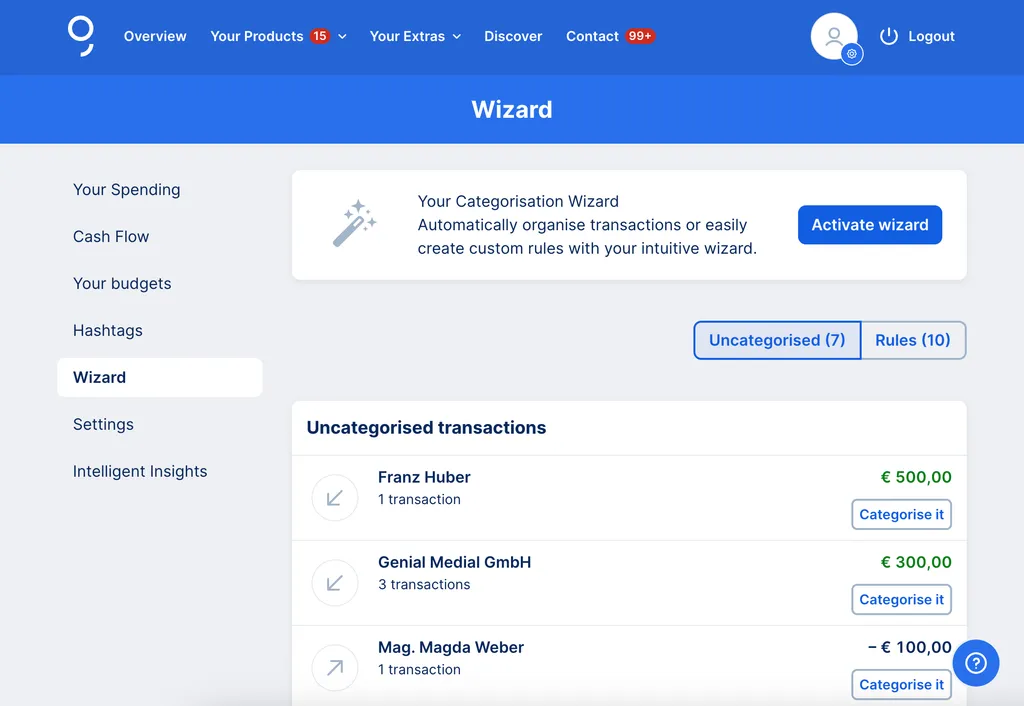
Now you can start setting rules - you have two options:
Set multiple rules: Click "Activate wizard" and George guides you through the whole list. You can skip those you don't want to categorise.
Set a rule for a single sender / recipient: Click "Categorise it" next to the sender / recipient.
George shows you different options for outgoing and incoming transactions.
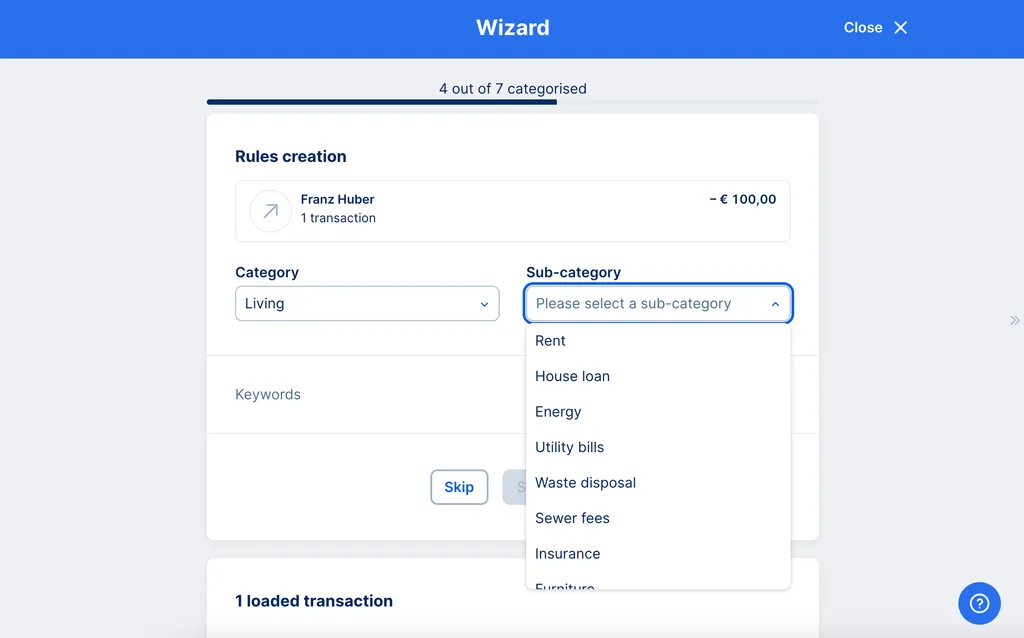
1. Pick a category (the "big picture" group) and sub-category (the specifics) in the drop-down lists.
Does all this look familiar? Good eye. These are the same as with Spotlights and George FIT and make it easier for George to put things in the right pots.
You will also see a list of transactions with this sender / recipient below.
2. If you want, add keywords to make the category easier to spot. Click "Expand" and choose from George's suggestions.
3. Click "Set a rule" - if you're using the Wizard to set more than one rule, George takes you to the next one on the list.
4. Reload the page to see the changes.
Don't need a rule anymore? Or need to make changes?
You will now see the sender / recipient in your uncategorised transactions. Now you can recategorise if you want to by following the steps above.
Author: Charles Wagner