Create Bulk Transfers

Last Article Update 17.04.2026

A bulk transfer makes it easier to transfer many orders from one account to a large number of beneficiaries. Instead of initiating each individual transfer separately, you can combine and approve all orders in one go. A close cousin of this is bulk direct debit, for direct debits from different debtors to a specific account.


Bulk Transfer Bulk Transfer

When creating a bulk transfer manually, you can specify several recipients or beneficiaries for a bulk transfer, along with the corresponding individual amounts to be transferred to each recipient. This saves you time in the long run and makes your accounting easier.

In a manually created bulk transfer, you can include up to 1500 individual orders. It's an efficient and structured way to manage multiple transfers in a single process.

Create a bulk transfer

Bulk transfer from overview Bulk transfer from overview


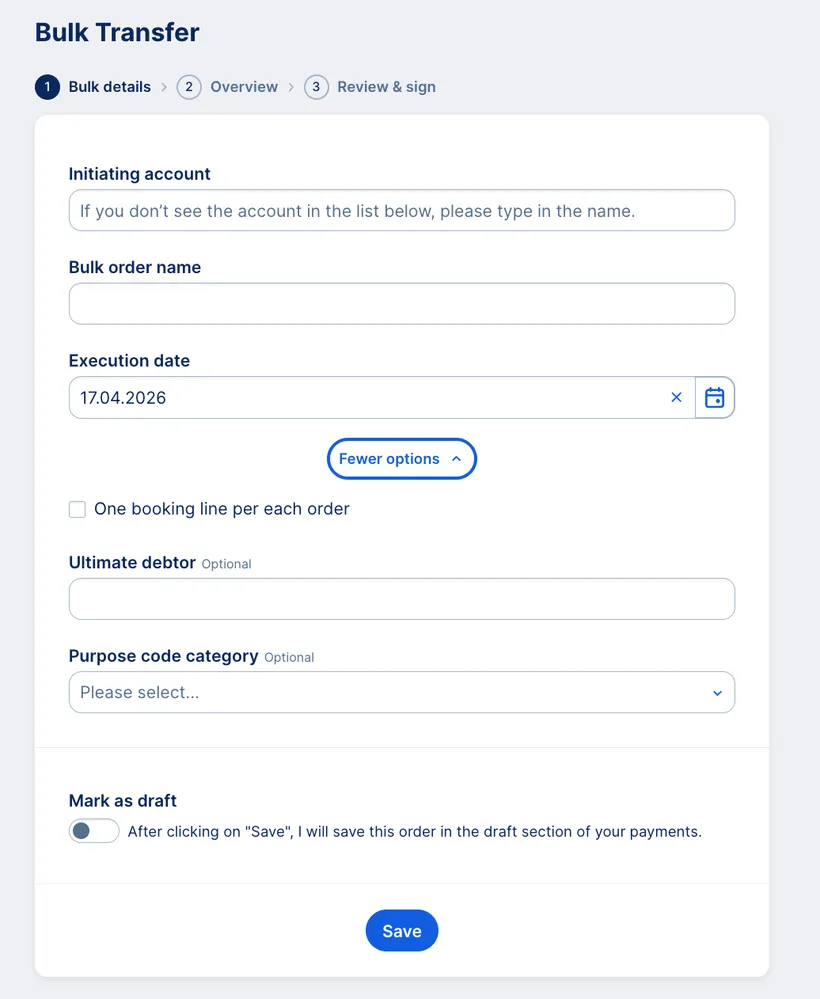
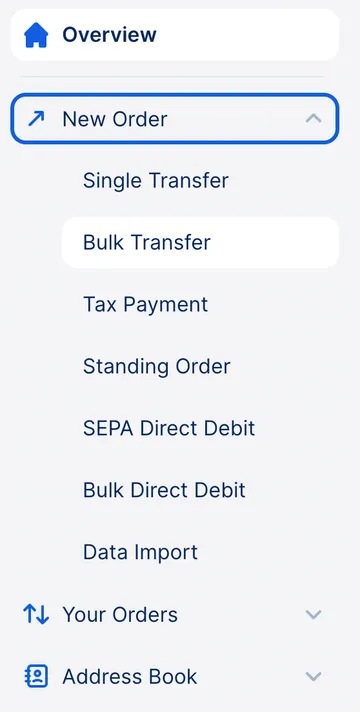
From "New Order" in the left-side menu in your overview, select "Bulk Transfer". You need to enter the following details when creating the order:

  1. Initiating account: Select an account from the list George shows you. The order will be executed from this account.
  2. Name of the bulk transfer: Select a name that's informative. This makes it easy for you to find it again and know what it's about. For example, "Bonus payments" or "Employee catering".
  3. Execution date: You can set this using the calendar. Please note: George will execute all single transfers that are included in the bulk on your chosen date.


Now choose whether you want to have a single line per each (individual) order. If so, you will see each transaction displayed individually in the order history and the account statement.


Optionally, you can also specify an ultimate debtor and the purpose code category, such as cash management, intra-company payment, interest or trade. Select the appropriate term from the list. This works the same as when creating a single SEPA payment.


Create a bulk transfer Create a bulk transfer

Fill your bulk transfer

Your Bulk Transfer Your Bulk Transfer


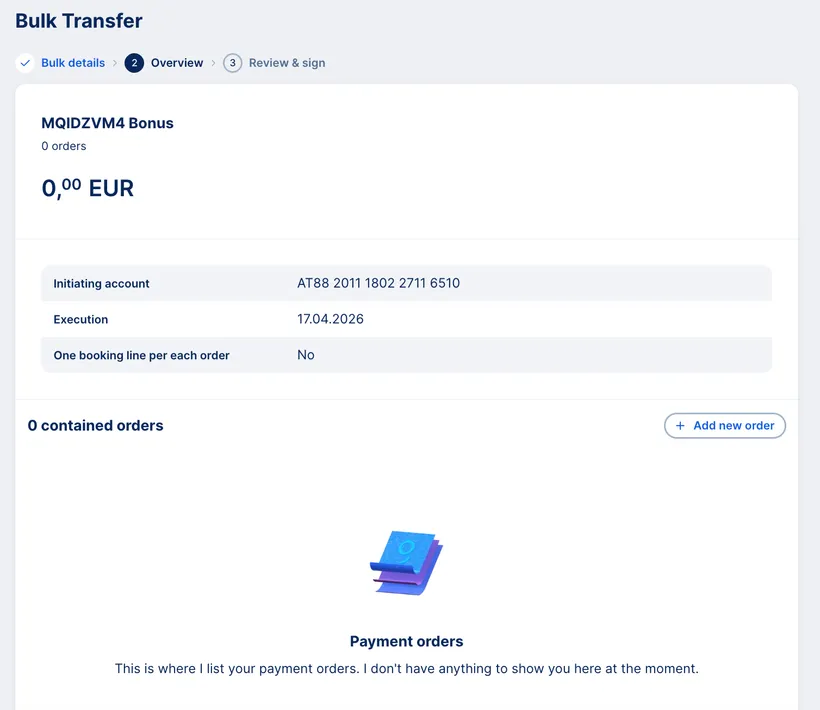
Once you have created the bulk transfer, George will show you the details. This includes the account from which the transaction is being made, the execution date and whether you wanted single entries or not.

New single order within a bulk

Single Order within a bulk Single Order within a bulk


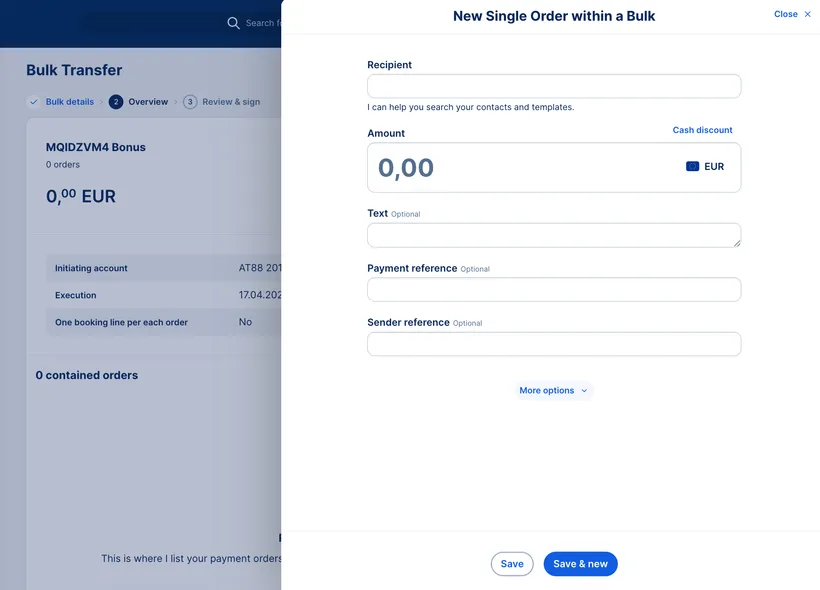
You can now add the individual orders. Please enter the following:


  1. Recipient
  2. Amount
  3. Text OR payment reference (optional)
  4. Sender reference (optional)
  5. Purpose code (optional)
  6. Ultimate creditor (optional)


If you would like to add another order, please click on "Save & new". Once you enter all single entries to the bulk, select "Save". George will then lead you to the signing process. You can always close the window at the top right of the screen if you wish.

You'll find your freshly created bulk transfer in Your Orders > Payment Orders:


  • In Signature Folder if you haven't signed it yet
  • in the Order History if it's executed already


You can check all details and the individual items in a list. These are sorted by recency. The most recently created or modified order is always at the top of the list. 


You can edit your open bulk orders at any time. To do so, find it in Signature Folder, click on the 3 dots (...)  next to it and choose "Edit".


Here you can edit individual orders, one-by-one or more at a time. To edit multiple items, select the ones you want by checking the boxes. You have the following options when you edit more orders at once:


  • Payment reference: Modify the payment reference for multiple items simultaneously.
  • Text: Adjust the accompanying text for all selected items.
  • Sender reference: Switch the client reference to a bundled format.
  • Amount: Apply dynamic or fixed amount changes to all selected items.


At a glance: In the print view, you'll see general information such as total amount, number of single orders and signing user. This is followed by a detailed list of the contained single orders. This provides greater clarity and organisation.

Author: Tamara Berger-Feichter