With George ID, you can approve logins and transactions directly in the George Business app. You no longer need a second app for authorisations. This article explains how George ID works and how to activate it on your devices.
Last Article Update 21.04.2026
With George ID, you can approve logins and transactions directly in the George Business app. You no longer need a second app for authorisations. This article explains how George ID works and how to activate it on your devices.
George ID is an authentication method that lives inside your George Business app. Unlike its predecessor s Identity, George ID doesn't require a separate app for approvals. To sign with George ID, you can use your George ID PIN or (optionally) your biometric data.
George ID meets all the requirements of modern two-factor authentication (2FA). To keep your account secure, you have to activate George ID on every device that you want to use for authorisations.
As an alternative to the George Business mobile app, you can download George ID for the computer. You can then approve logins and transactions directly on your PC. You need to activate the desktop app with an activation code before you can use it for authentications. More on that below.
Two-factor authentication (2FA)
Every time you log in or sign a transaction, George confirms your identity using two factors.
By activating George ID on your phone or PC, you meet the first requirement. After that, George only needs to check for your PIN or biometric data when you want to sign something.
After you click "Sign" or "Start login", it's time to confirm the action with George ID.
George Business mobile app: You can sign the login or transfer directly in the George Business app on your phone. You may need to refresh your screen to see the request. You can then approve it with your George ID PIN or your biometric data.
George ID for the computer: As an alternative to the George Business mobile app, you can also activate George ID for your desktop. You can confirm logins and transactions directly in the desktop app with your George ID PIN.
George web browser: You need a device where the George app is installed and you've activated George ID. This can be the George Business mobile app or George ID for the computer. You may need to open the app to display the request. Then you can confirm the login or transaction with your George ID.
To activate George ID on a new device, make sure you have:
Admin's Activation Letter
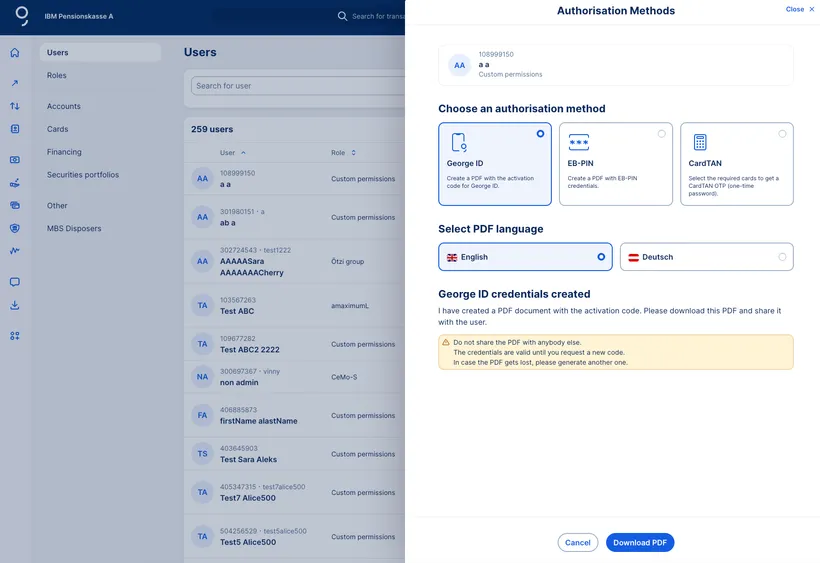
As an admin you can create an activation letter using the George Business browser version. The letter includes the user number ("Verfüger-/Benutzernummer") and an activation code. You can create a letter for yourself and for other admins and users, but not for disposers. The code contained in the letter activates one device (George Business mobile app or George ID for the desktop) and is valid for 14 days.
In these cases, the admin's activation letter is the best solution:
Even if these conditions are not met, you can always create a code for admins (including yourself) and users, both for the first activation and for additional activations (e.g. second phone).
Creating the Activation Letter:
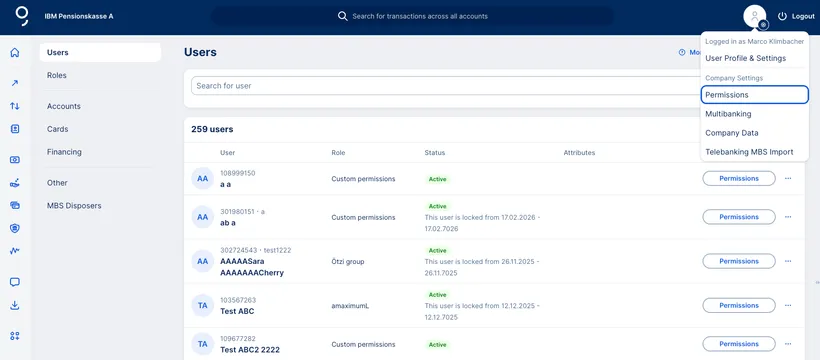
Access George Business in a web browser. Click on the Profile symbol in the top right corner. In the dropdown, select "Permissions".
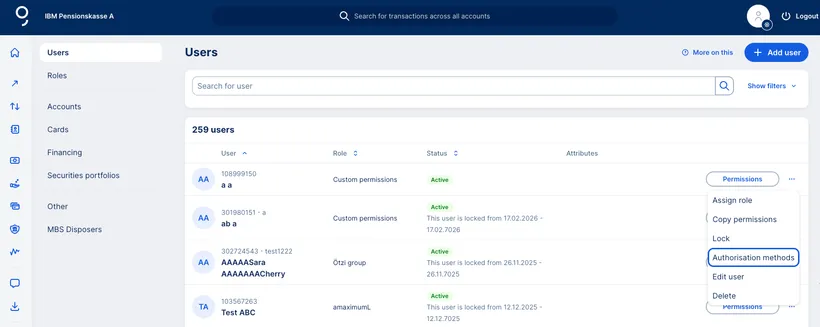
Find the admin/user for whom you want to create an activation letter. Click on the three dots ( …. ) on the right side, next to the “Permissions” button. Select “Authorisation methods". Then, choose "George ID".
You can now download the activation letter as a PDF. The activation letter is strictly confidential. Only share it with the admin/user. The code is valid for 14 days and can only be used once to activate George ID on one device.
Create Your Own Activation Codes
You can use George ID to create activation codes in the George Business mobile app.
This option is useful if you're switching or adding phones. Make sure that the following are true:
Here's how it works
Open George Business on the mobile device where you've activated George ID. In your Overview, click on the "Profile" icon in the top right corner.
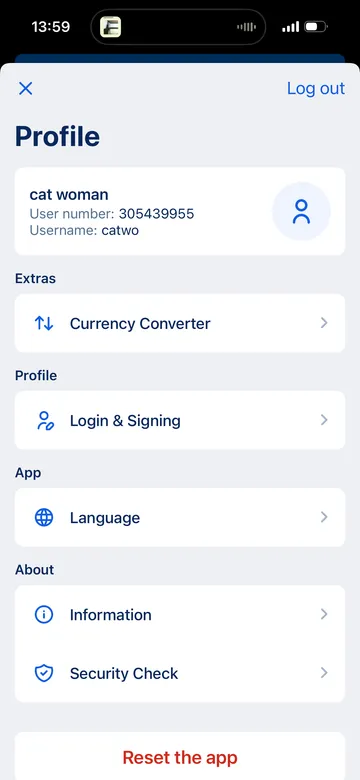
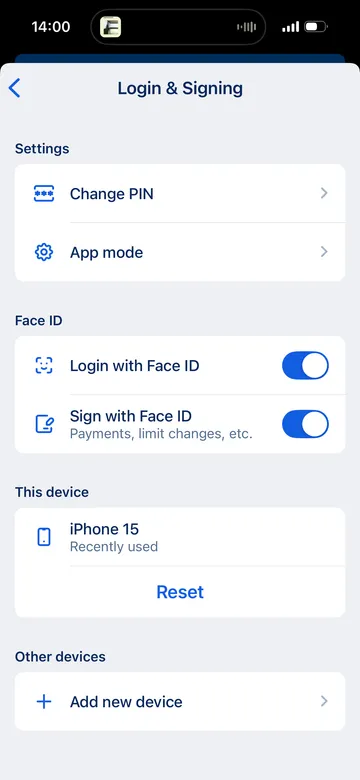
Tap "Login & Signing", then select "Add new device" at the bottom.
George will give you a brief instruction to follow on your new device. Once you've finished all the steps, tap "Proceed to activation".
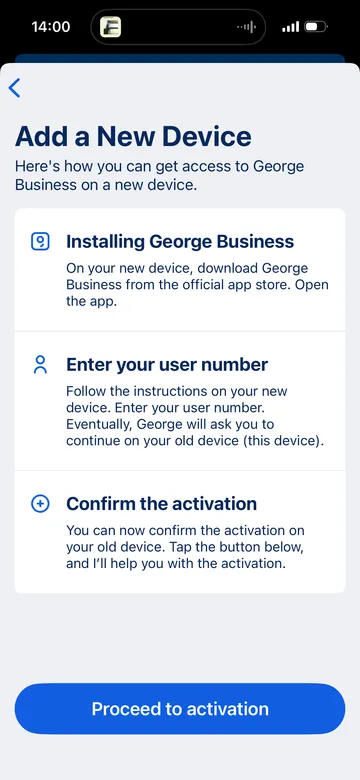
Your phone will display a QR code. This is your activation code.
It depends on your user role. Disposers get the code from their personal advisors. Users and admins get the code from the admin's activation letter. As such, the process for desktop activation is the same as for mobile first-time activation.
After the first activation of George ID, you cannot create codes for additional computers by yourself. The admin (for users & admins) or advisor (for disposers) has to create a new activation letter for each new computer.
Please note: George ID for the computer (an app you download) is not to be confused with the George Business browser version (a window in your web browser). The George Business browser version does not require activation.
Open the George Business Österreich App and select Login to George Business.
Enter your user number ("Verfügernummer"). You can also enter your username/alias if your admin has previously created one for you.
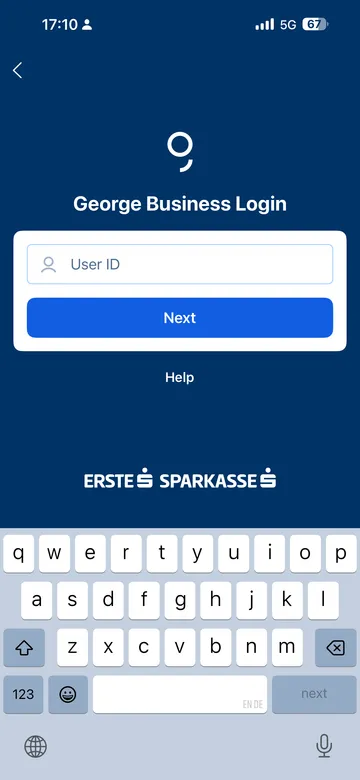
George will now take you through the process of setting up your George ID. Create a PIN that is difficult to guess and that only you know. If you have created a George ID PIN before, George will ask you to enter your existing PIN. George will then ask you if you'd also like to use your biometric data for authorisations on this device.
When prompted, enter the activation code. Once you've used the code, it will become inactive. You can add up to five devices, but you will need a new activation code for each device.
If you've followed this guide, you have now activated George ID on a new device. From now on, you can use this device to identify yourself to George.
And with that: Welcome (back) to George!
Author: Rebecca Stoll